
Group Enrolment of Learners
Enrol learners into a training cycle by group
With group enrolment, you can enrol all people from a department, location, position or unit into a training cycle in a single step. You do not need to select learners individually.
This also keeps the cycle automatically up to date if someone joins one of these groups later. For example, new employees or learners who change departments are automatically enroled in training cycles so that no one misses their mandatory training.
Group enrolment is optional. You can still enrol or remove learners individually via the Learners area as usual, and also use both methods in parallel within the same training cycle.
What counts as a group
You can enrol by four types of group:
| Group type | Where it comes from |
|---|---|
| Department | Master data of the learner |
| Location | Master data of the learner |
| Position | Master data of the learner |
| Unit | The units you create under Administration → Units |
Learner master data is populated in LMS+ via a CSV import or through your HR integration (Entra ID, Okta, Personio). Important: Units cannot currently be assigned via provisioning through your HR interface. This is currently only possible either manually in the Learners area or via CSV synchronization.
Tip: groups are only as accurate as your learner data. If the same department is recorded as "HR" for some people and "Human Resources" for others, LMS+ treats them as two different groups. To build an exact list of people, create a unit for them.
How group enrolment works
- Adding more groups adds more people. If you add Department: Legal and Location: Berlin, everyone in the legal department and everyone in Berlin will be enroled. All learners who belong to at least one of the selected groups will be enroled.
- Each learner is enroled only once, even if they belong to multiple selected groups or if you have already enroled them individually.
- New group members are enroled automatically at the exact moment they are assigned to the group.
- Leaving a group does not remove anyone. If a learner is removed from a group, they remain enroled in the cycle and keep their progress.
- The selected groups belong only to one training cycle. When you create your next cycle, you add the groups again.
- A learner can only be in one running cycle per course. If a learner is already in another cycle for the same course, they will be skipped. Everyone else will still be enroled.
Enrol groups when you create a training cycle
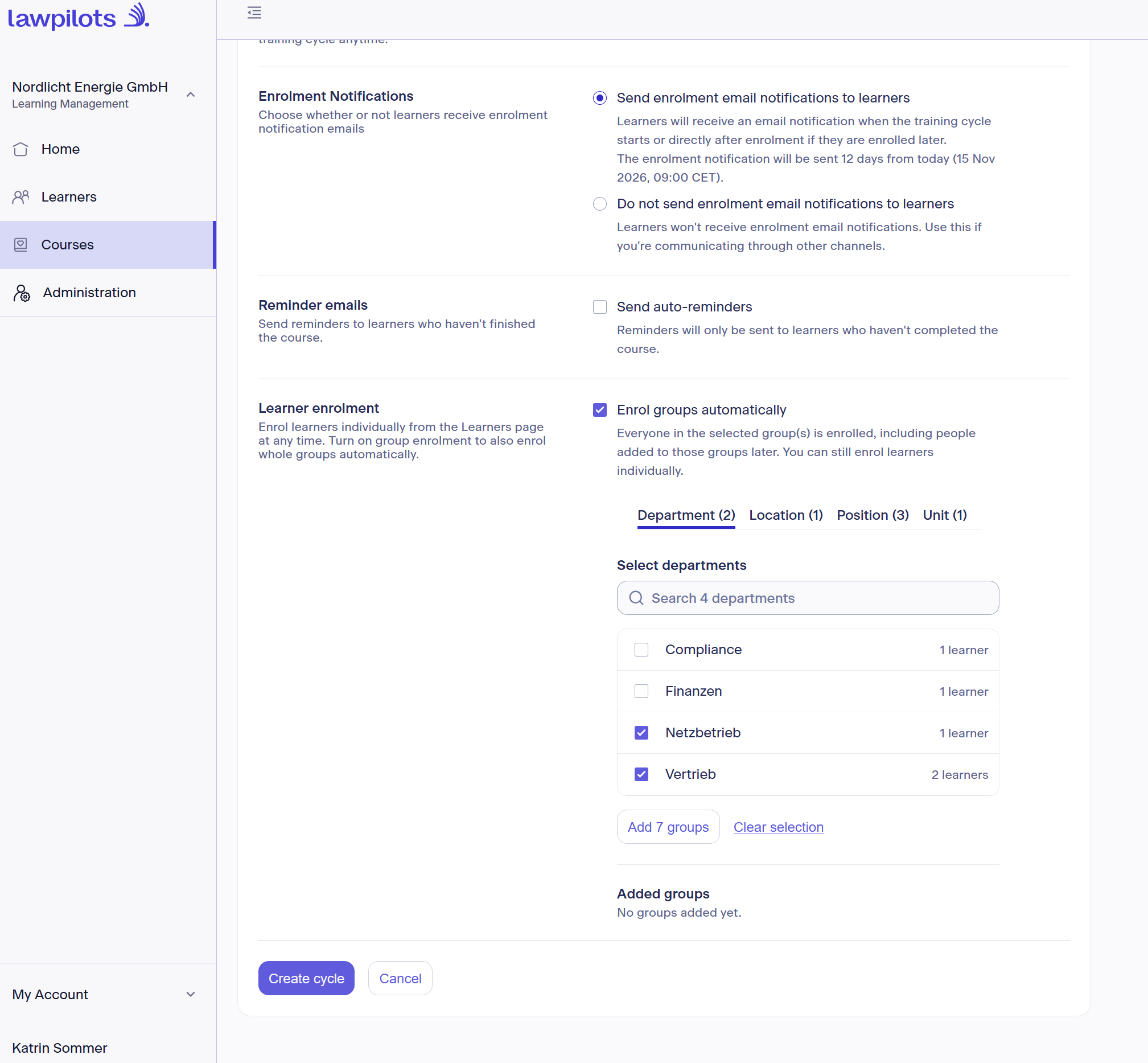
- Create your training cycle as described in the article Creating and editing training cycles.
- Fill in the cycle name, dates, notifications, and reminders as usual.
- Under Learner enrolment, select Enrol groups automatically.
- Choose a group type: Department, Location, Position, and/or Unit.
- A list will open showing which groups exist within this type and how many learners are in each group.
- Check the box for the desired groups. If your list is long, use the search field.
- You can select multiple groups from more than one group type.
- Click Add groups.
- Each group you add will appear under Added groups with the corresponding number of learners.
- Check the total number below the groups. It shows you how many learners will be enroled. People belonging to more than one group are counted once.
- Click Create cycle.
When you create the cycle, a message will confirm how many learners have been enroled. If some learners could not be enroled, a list below the selected groups will show who they were and why.
Good to know
- To remove a group before creating the cycle, click the "X" on that group.
- If you close the list or create the training cycle without clicking Add groups, the groups you checked will not be saved.
Add groups to an existing training cycle
You can also add groups retrospectively to training cycles that are already planned or running.
Already enrolled learners individually? Read this first:
You can still add a group to a training cycle so that new members are enroled automatically. Already enroled learners remain enroled individually, so the group might initially show that none of its members were enroled through it. This is expected behavior.
If you remove the group later and select "Unenrol", only the people enroled via the group will be removed. You will need to remove the others individually, exactly as they were enroled. Automatic group enrolment does not "overwrite" enrolments previously made in this cycle via the learner list!
- Open the desired training cycle and go to the Settings tab.
- Click Edit.
- Under Learner enrolment, select the Enrol groups automatically option if it is not already selected.
- Add your groups as described above. Groups already present in the cycle are listed under Added groups.
- Click Save changes.
Everyone in the new groups will be enroled upon saving. The rules of group enrolment described earlier apply here as well.
Remove a group from a training cycle
- Open the desired training cycle and go to the Settings tab.
- Click Edit.
- Click the "X" on the group you wish to remove.
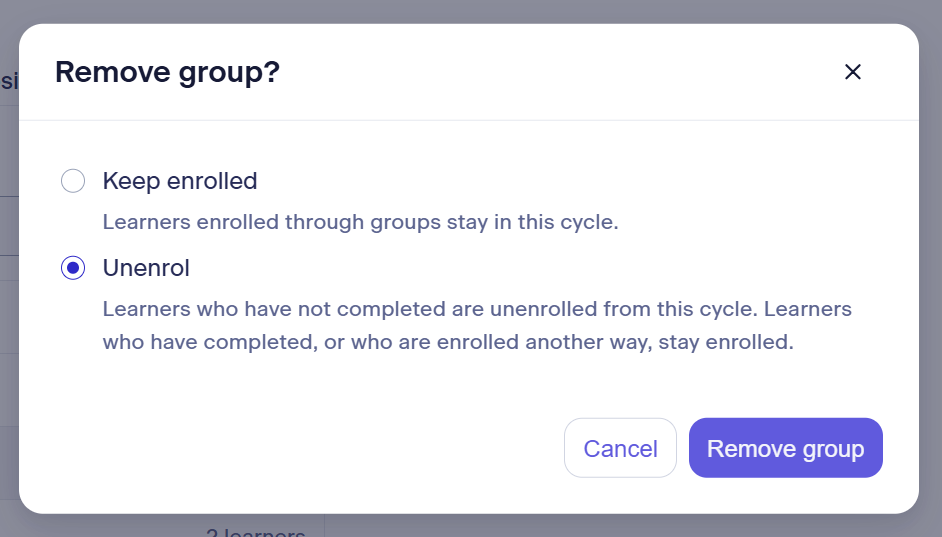
- Choose what should happen to learners who were already enroled in the cycle via the group:
- Keep enrolled: Learners remain in this cycle. or
- Unenrol: Learners without completion will be removed and will no longer have access to this training via this cycle. Learners who have completed the training remain in the cycle and their certificate is preserved.
- Click Remove group.
Good to know:
- As long as you do not click this final confirmation, the change will not be saved and no one will be removed from the training cycle.
- After saving, no new learners will be enroled via this group either.
- A learner who is also part of another group still selected in the same cycle, or whom you enroled individually, will remain enroled.
- To stop using groups for a cycle altogether, simply uncheck Automatically enrol groups. LMS+ will also open the prompt dialog asking how you want to handle already enroled persons before removing all groups upon saving.
When a learner can't be enrolled
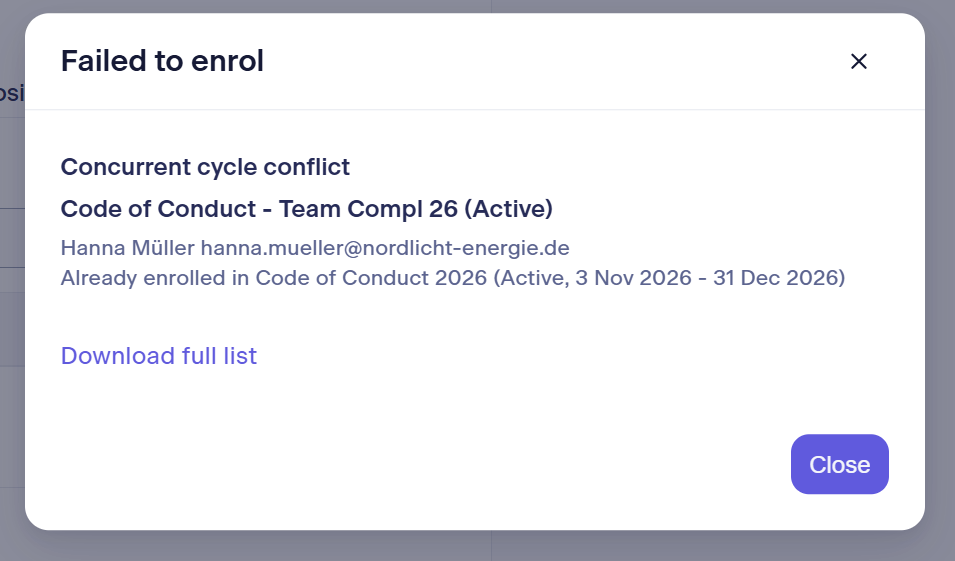
In general, a learner can only be in one actively running training cycle per course. If a group would add someone to a second cycle with overlapping runtime for the same course, LMS+ skips this learner and enrols everyone else.
You can see who is skipped:
- While creating the cycle: A list below the added groups shows the number of people who are skipped and states the reason.
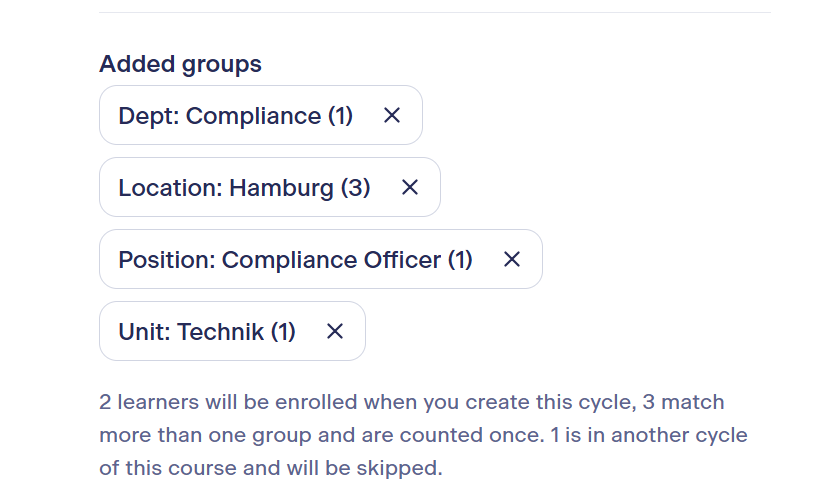
- After saving: A message appears with details and the option to download a complete list.
- If a new group member is skipped later: A message appears on the Learners tab of the training cycle. Click View history for details.

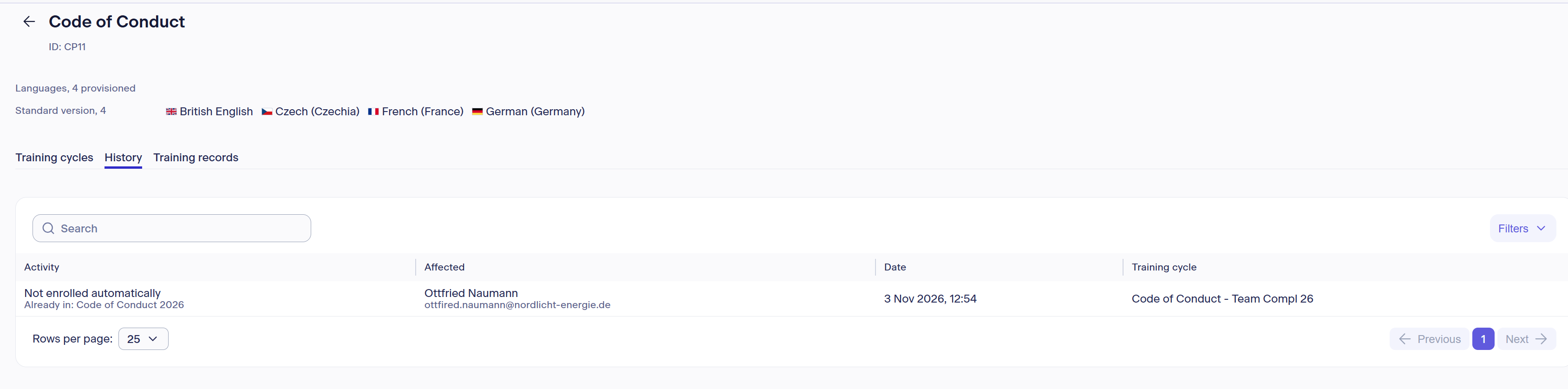
- Skipped learners will then be enroled automatically at a later time as soon as their earlier cycle for this course has ended, provided they are still in the group and the later cycle is still running.
Seeing how a learner was enroled into a training cycle
- On the Settings tab of the cycle, each group shows how many people it contains. If fewer are enroled than are in the group, both numbers are displayed, for example Dept: Sales (31 of 36). Hover the mouse pointer over the group to see the reason.
- On the History tab of the course, learners enroled via a group are displayed with Enrolled and below it with Via group as well as the group name.