
Personio Integration
Overview: What the Personio Integration Does
The Personio integration enables an automatic synchronization of employee data from Personio → lawpilots LMS+, so learner management stays up to date without manual maintenance.
- Active employees in Personio appear as active learners in LMS+.
- Employees marked on leave in Personio are set to inactive/archived in LMS+ (no notifications, still manageable depending on your setup).
- Employees marked inactive in Personio are archived in LMS+.
- Updates (e.g. name, email, department) sync in real time.
- Manual learner creation and CSV uploads are still possible.
Important: This is a one-way integration. No training progress, completion data, or certificates are sent back to Personio.
What’s NOT Possible with the Integration
- Targeted training distribution via Personio attributes
You cannot automatically assign courses in LMS+ based on Personio data (e.g. “GDPR training for everyone in HR”). - Syncing training data back to Personio
Training status, completions, and certificates from LMS+ are not visible in Personio and cannot be evaluated there. - Running multiple provisioning integrations in parallel
You cannot use Personio integration and Entra ID integration at the same time for the same tenant.
Prerequisites
Before setting up the integration, make sure:
- The Personio integration is enabled for your tenant (feature-gated).
- You have admin access in LMS+.
- A Personio Admin is available to create API credentials.
- Each employee in Personio has a unique email address (required).
- Your organization has the required Personio plan that supports creating custom API integrations.
How to connect Personio to LMS+
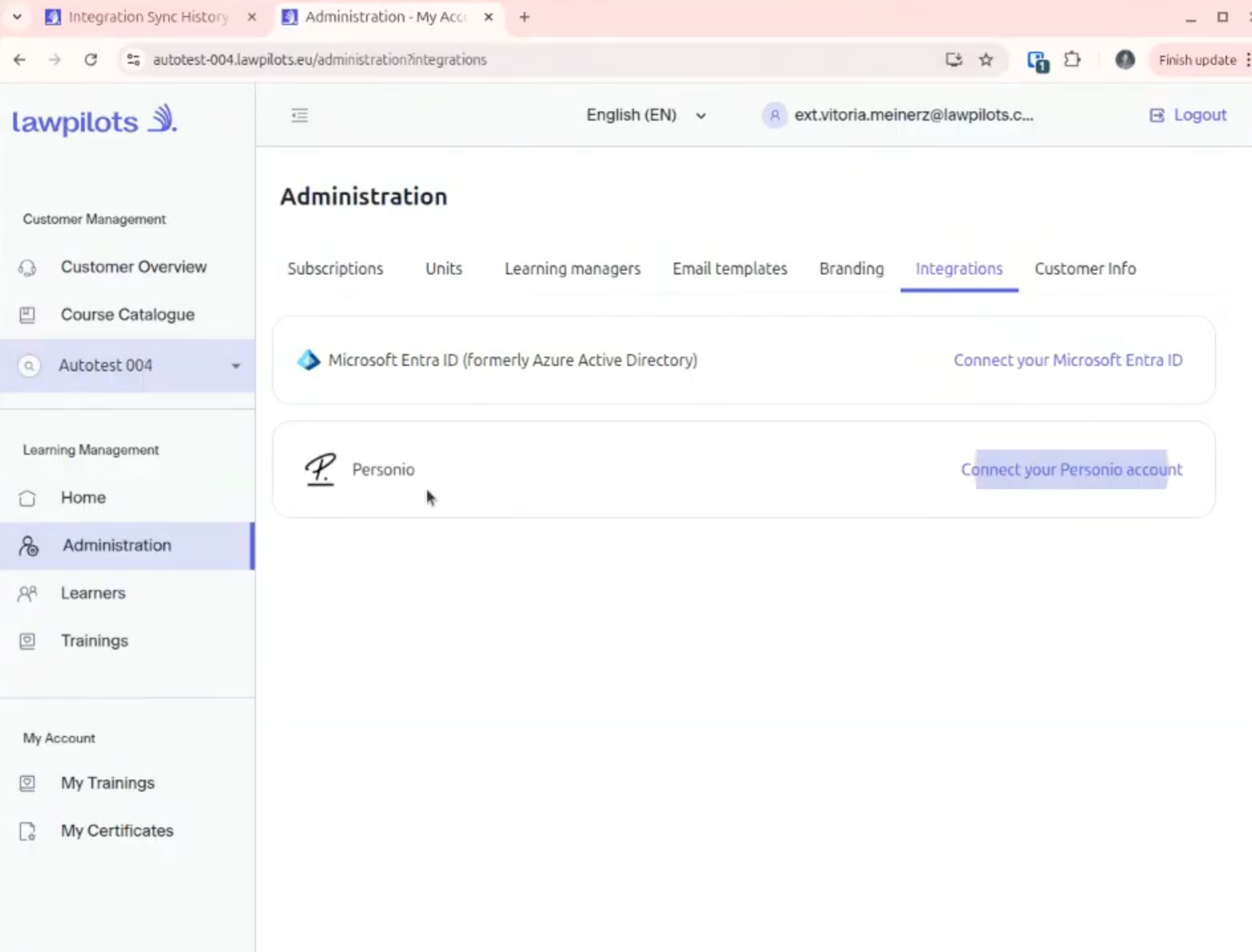
To connect Personio, log into your lawpilots LMS+ and navigate to the “Administration” area.
Choose the tab “Integrations” and select “Personio”.
The setup consists of three steps:
- Preparation
- Attributes
- API connection
Step 1: Preparation (in LMS+)
- Go to Administration → Integrations.
- Click Connect your Personio account.
- Review the “About the integration” section.
- Confirm the checkboxes:
- I have admin access and permissions for Personio (or someone with permissions will assist).
- Each employee has a unique email address.
- Click Start setup.
Note: If the Personio card is not visible, your tenant is likely not enabled for Personio yet (feature gating).

Step 2: Choose Attributes (in LMS+)
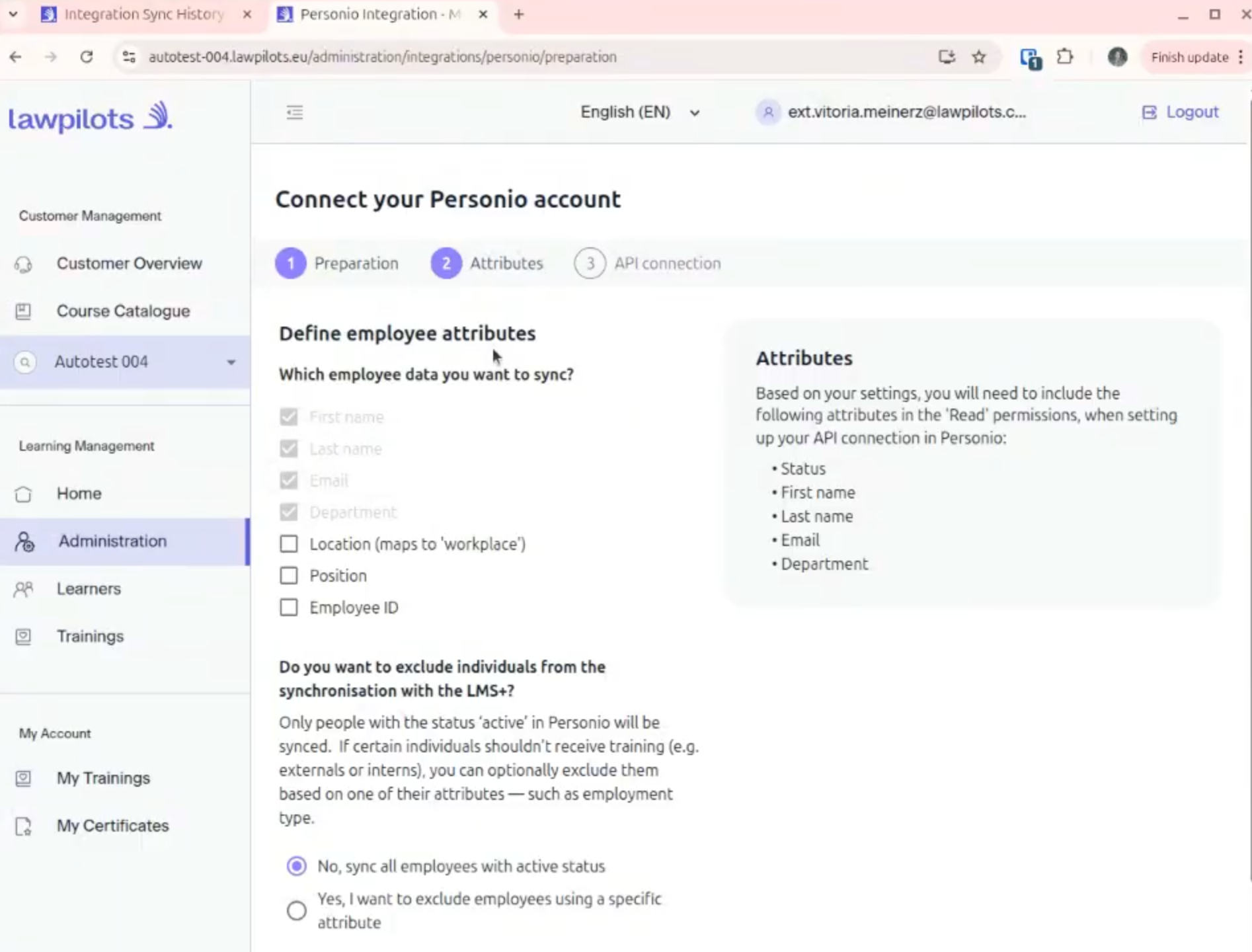
In this step, you define which employee data should sync from Personio to LMS+.
Required attributes
These are mandatory and cannot be deselected:
- Status
- First name
- Last name
- Department
Optional attributes
You can additionally sync:
- Location (maps to “workplace”)
- Position
- Employee ID
- Employment type
- Select the attributes you want to sync.
- Continue to the next step.
Important: LMS+ only reads the attributes you select here. The integration is not able to access unrelated sensitive HR data (e.g. salary, private address, emergency contacts).
Step 2b (Optional): Exclude Employees from Synchronization (in LMS+)
You can exclude specific individuals from being synced (e.g. interns, externals, remote staff), based on one attribute.
- Choose Yes, I want to exclude employees using a specific attribute.
- Select an attribute (e.g. employment type).
- Enter the corresponding attribute value from Personio that should be excluded.
Only one attribute value can be entered per input field.
To add additional exclusion criteria, repeat steps 2 and 3.
Important: Exclusion works as an OR rule.
If an employee matches any of the excluded values, they will be excluded from sync.
Step 3: API Connection (Personio + LMS+)
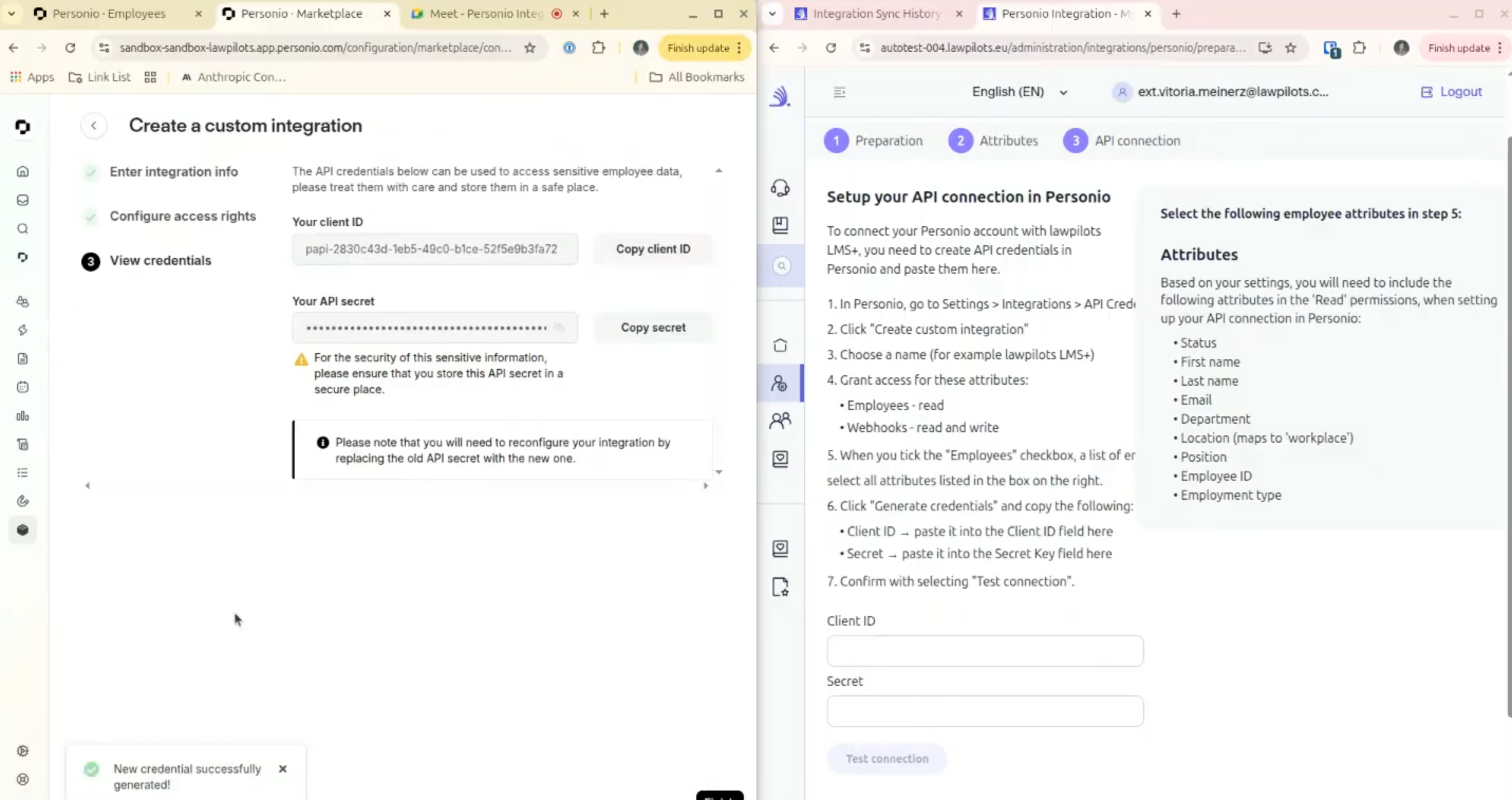
This step requires switching to Personio to create API credentials.
A) Create a custom integration in Personio (Personio Admin)
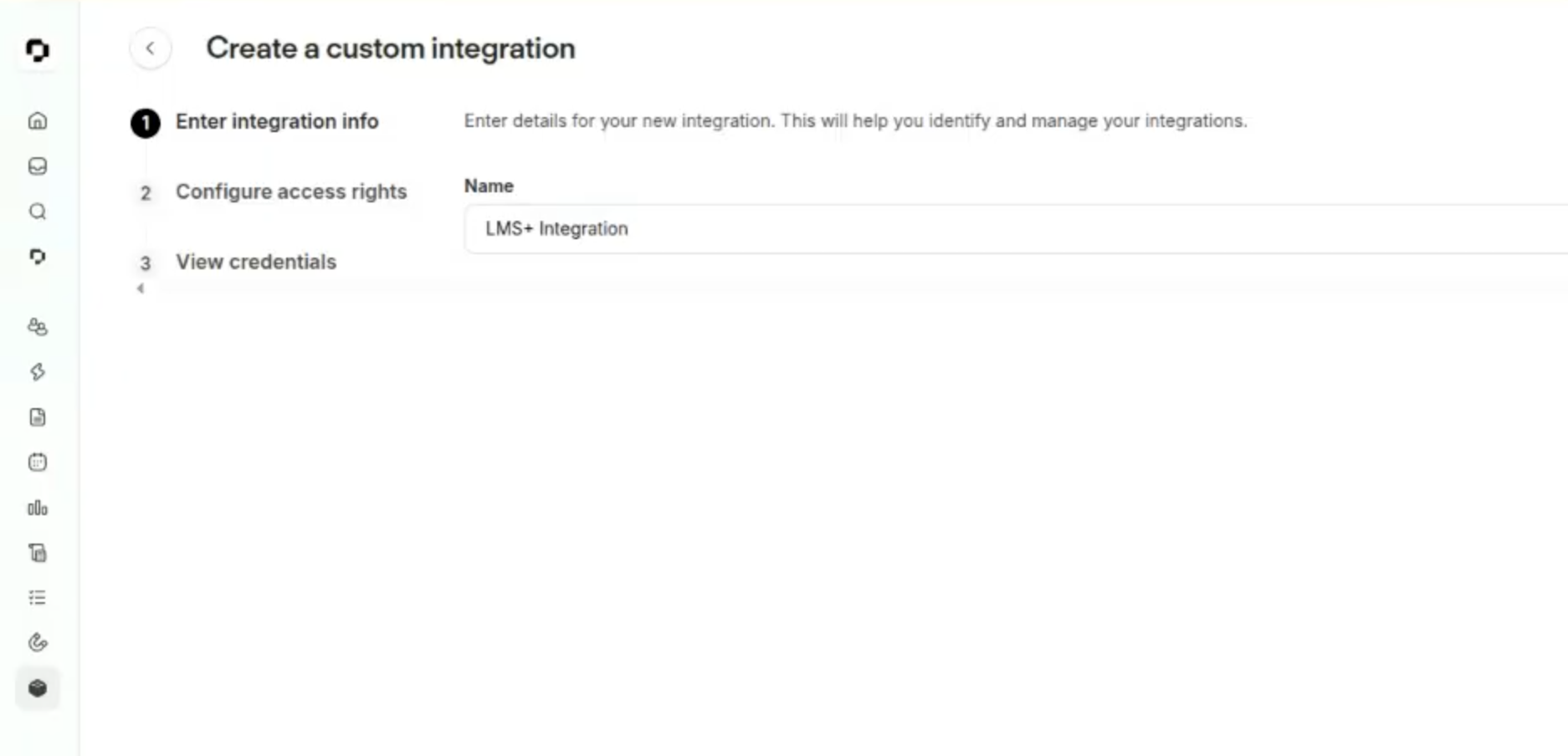
- In Personio, go to Settings → Integrations → API credentials.
- Click Create custom integration.
- Enter a name (e.g. “lawpilots LMS+”).
- Configure access rights:
- Employees: Read (required)
- Webhooks: Read & Write (required)
Important: Webhooks are required to enable real-time sync. Without webhooks, updates will not be synchronized automatically.
- Select the employee attributes (Read permissions) based on what you selected in LMS+ (e.g. Status, Name, Email, Department, etc.).
- Click Generate credentials.
- Copy and securely store:
- Client ID
- Secret
Note: The Secret is displayed only once. Store it in a secure vault (e.g. 1Password).
B) Paste credentials into LMS+ and test
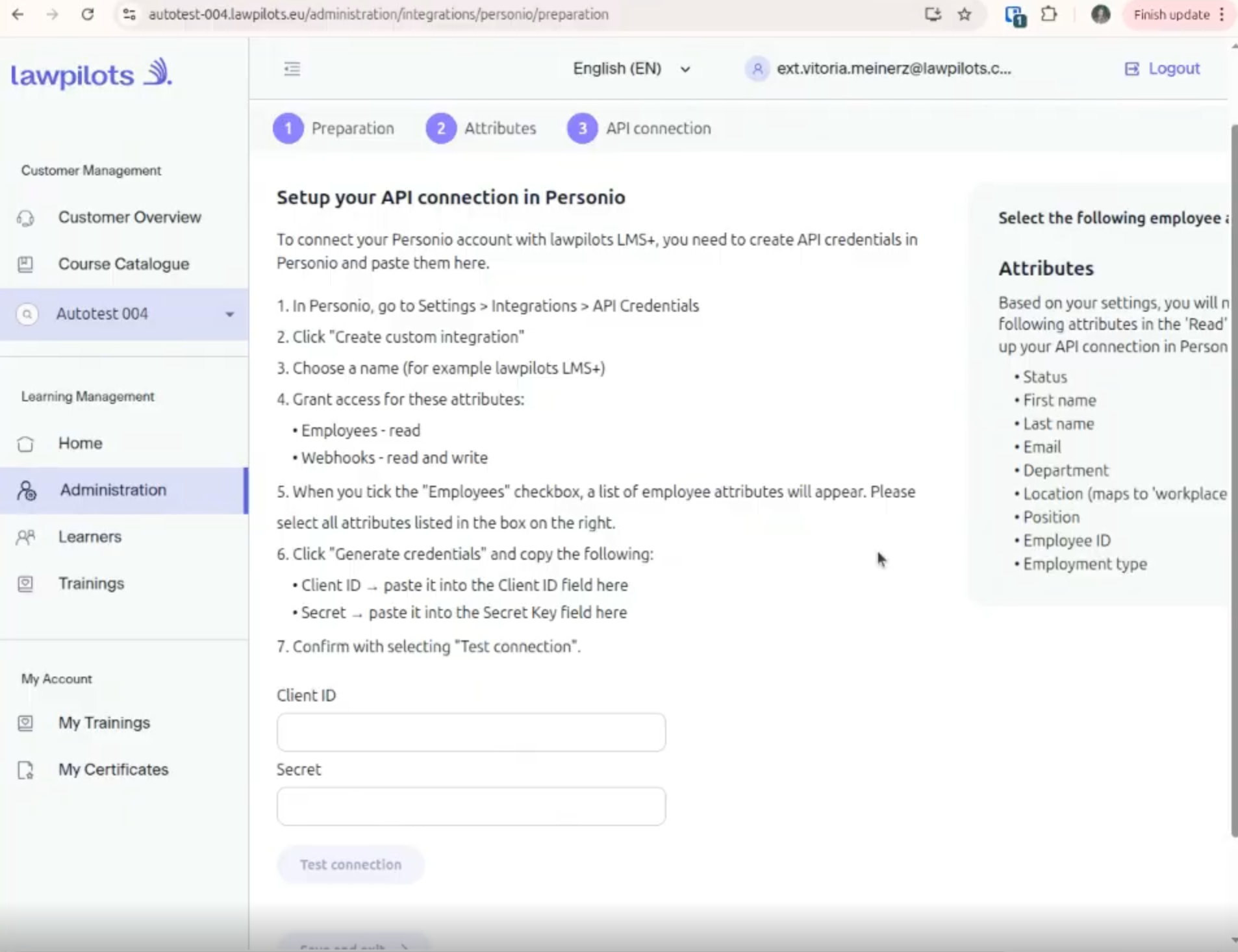
- Return to LMS+ → Step 3 “API connection”.
- Paste Client ID and Secret into the fields.
- Click Test connection.
- Save and finish setup.
Once saved, LMS+ starts the initial synchronization.
Initial Sync & Sync History
After setup, LMS+ performs the first synchronization:
- Eligible employees are created or updated as learners in LMS+.
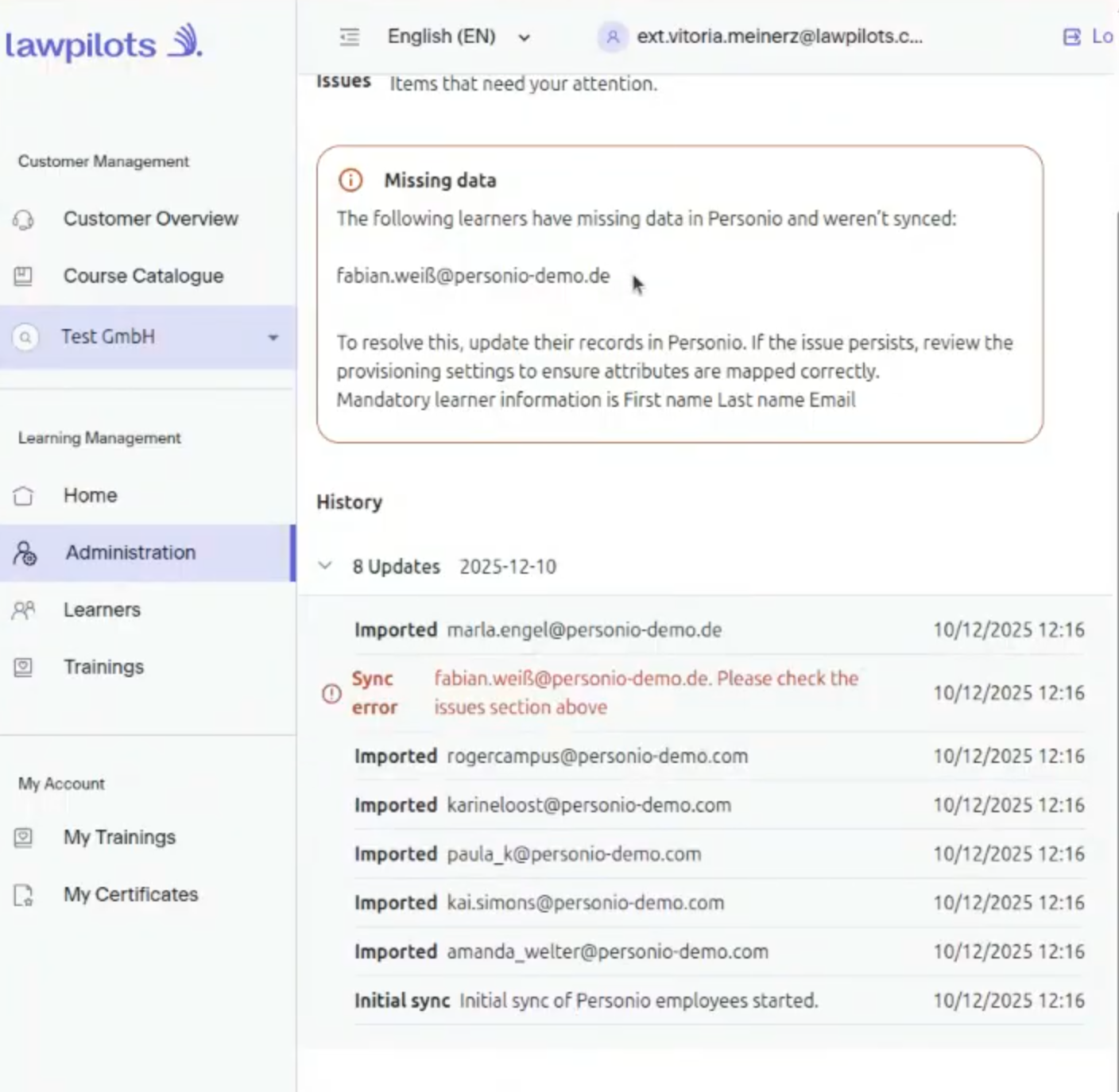
- If required data is missing (First name / Last name / Email), the employee is not synced.
- You can review sync results in Personio history / Sync history.
Where to check issues
Go to:
Administration → Integrations → Personio → Sync history
There you will see:
- Imported learners
- Updated learners
- Sync errors (e.g. missing required data)
Ongoing Sync (Real-Time Updates)
After the initial sync, changes are synced automatically via webhooks:
- New employee created in Personio → learner is created in LMS+ (if eligible)
- Employee updated (name/email/department/etc.) → learner is updated in LMS+
- Status change to on leave / inactive → learner is archived in LMS+
- Status change back to active → learner is unarchived in LMS+
- Employee removed from eligibility (filters changed) → learner may be archived/unarchived depending on rules
Note: No manual “sync now” button is needed. Sync happens automatically once the integration is configured.
Invitations & Login Notes
- Personio provisioning does not provide SSO login.
- Learners synced via Personio receive an invitation email from LMS+ to set a password.
- Existing learners with the same email are updated, not duplicated.
Important: You cannot run Entra ID provisioning and Personio provisioning simultaneously for the same tenant.
Troubleshooting
Missing data (employee not synced)
If a learner appears under “Missing data” in Sync History:
- Update the employee record in Personio to include the required fields:
- First name
- Last name
- Then the user will be synced once Personio sends the next update event.
Email changes
If an employee email changes in Personio:
- LMS+ updates the email for the existing learner (no duplicate is created).
Integration not visible in LMS+
If you don’t see the Personio integration card:
- The feature may not be enabled for your tenant (feature-gated).
- Contact Customer Success / Account Management to request enablement.
Need Help?
If you want to enable the integration or need support during setup, contact us.