
Creating and editing training cycles
You can create new training cycles in 2 places in LMS+:
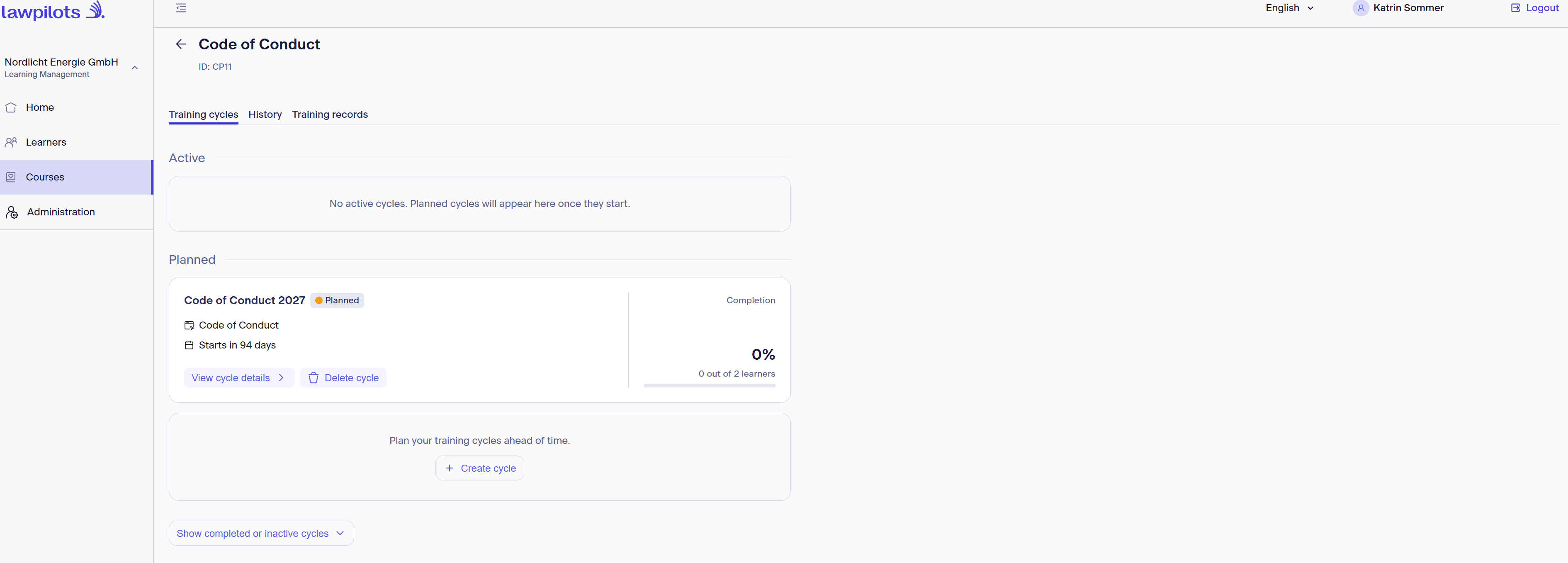
1. By clicking on the respective course tile in the overall overview Training cycles and then clicking on Create cycle
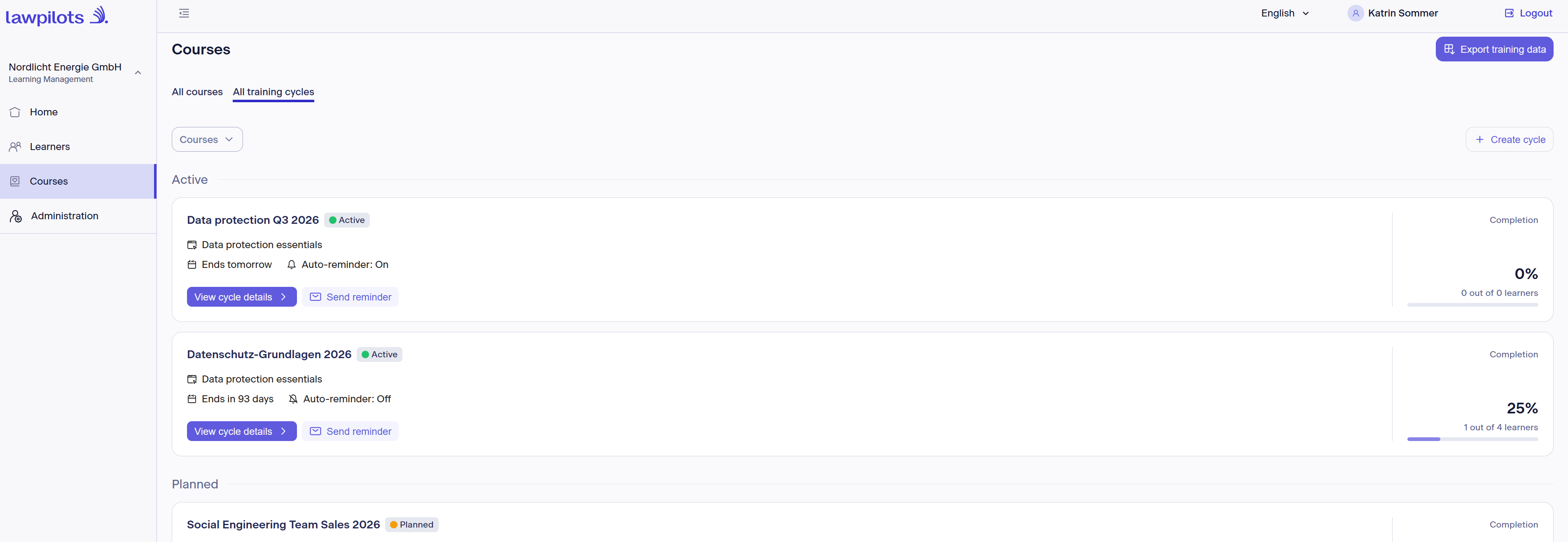
2. Selecting the tab All Training Cycles and then clicking on Create cycle in the top right corner
Difference between these two methods:
- In Variant 1, the course you clicked on is selected immediately, and a new cycle is created for it. No course selection required.
- In Variant 2, you first specify for which of your courses you want to create a new cycle.
Create training cycle
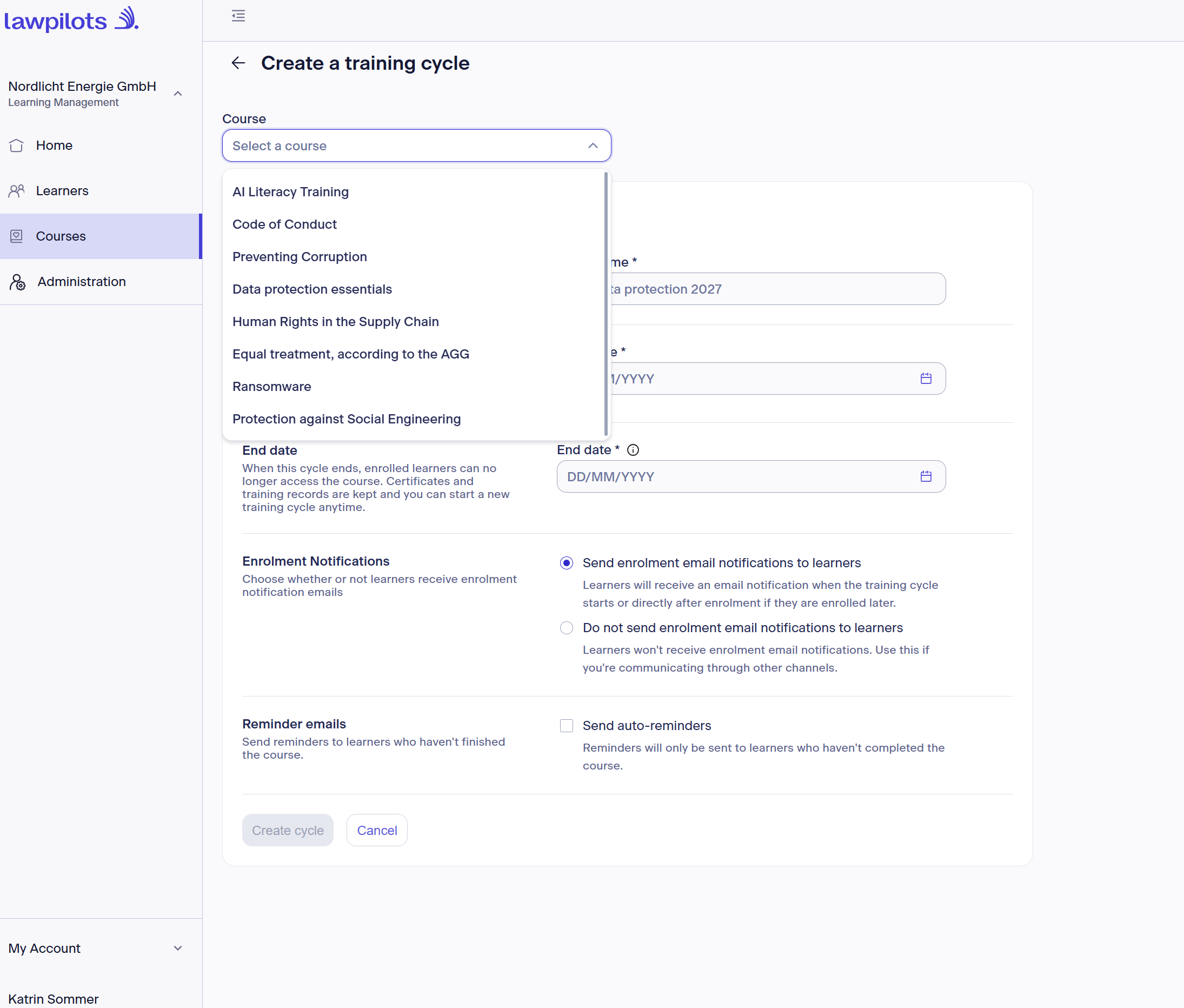
Unless you used Variant 1, select the course for which you want to create a new training cycle at the top first. Note: Simultaneous creation of cycles for different courses (multiple selection) is not possible.
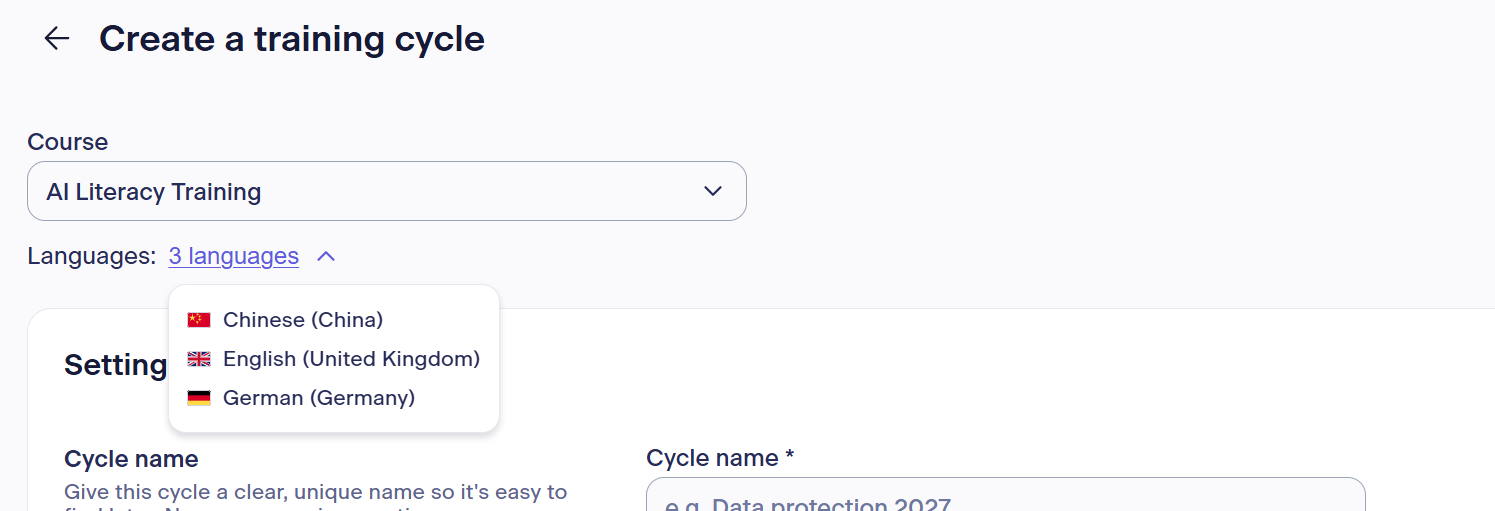
After selecting the course, the available languages (based on your subscription) will also be displayed to you:
Now it's time for the settings of your training cycle:
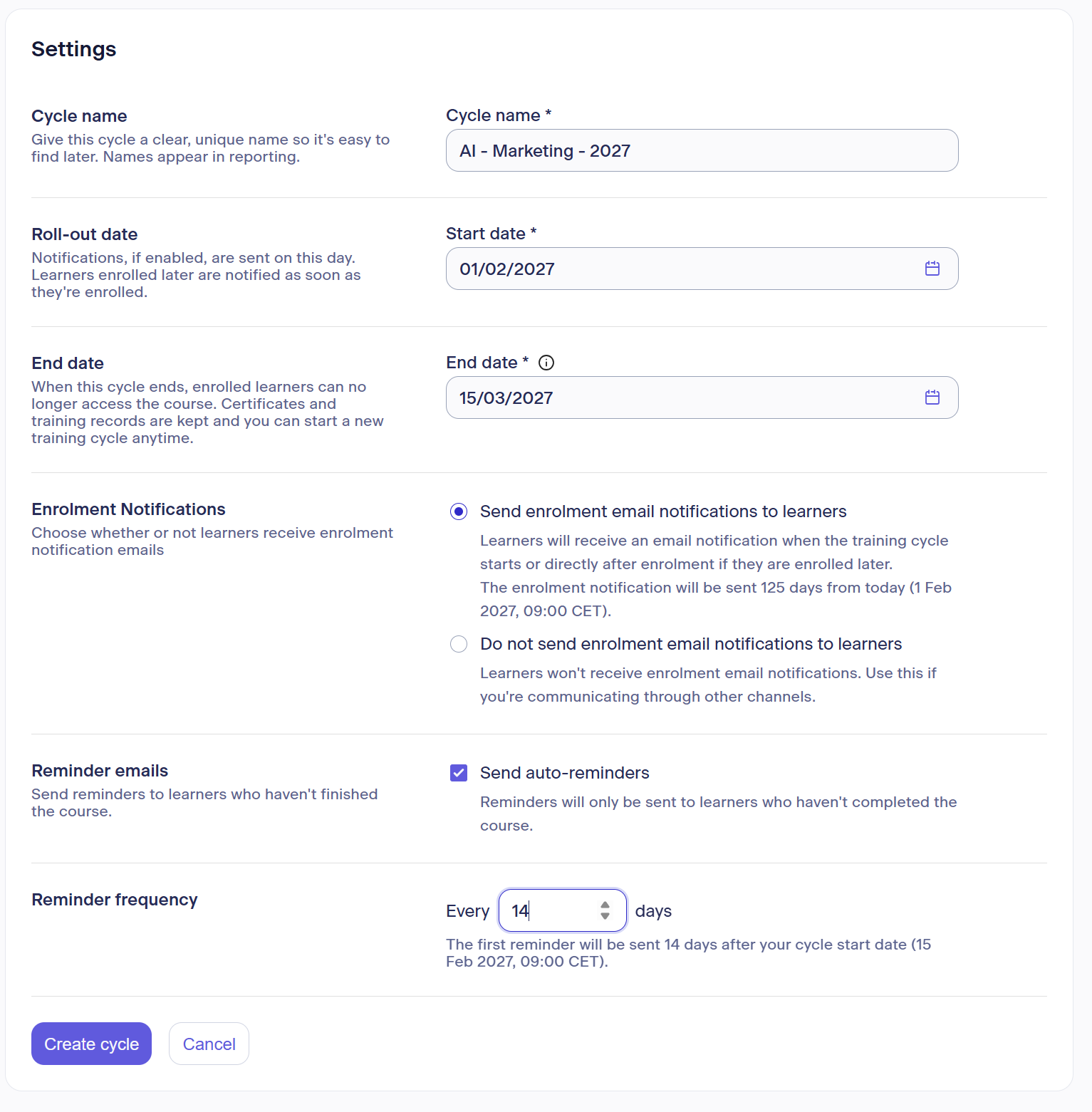
- Choose a clear, distinct cycle name that makes it easier for you to assign it later. This name is only visible to you in the learning administration and also appears in internal training reports. Your learners do not see this cycle name.
- Choose a start date that must not be in the past.
The start date
- controls from when this cycle can be actively used
- controls from when your enrolled learners can see and start the course in their learner account
- controls on which day (if activated) enrollment notifications are sent to your learners via email
- can be changed as long as the training cycle is in Planned status and not yet Active
- Choose an end date that must lie in the future and after the chosen start date
The end date
- controls until when enrolled learners can start, complete, and finish the course
- controls until when learners can see this course in their learner account
- can be changed at any time for training cycles in Planned and Active status
- replaces the former due date
- Decide whether your learners should receive an enrollment notification via email upon cycle start or assignment (after start) or not. Note: If the start date is set for today, the enrollment notification may still be sent late—at 10 a.m. German time the following day—because today's mailing cycle has already passed.
- Decide whether your learners should receive automatic reminders and set the interval for these reminders.
Once you have configured everything, click the Create cycle button.
New feature: Group enrolment of learners
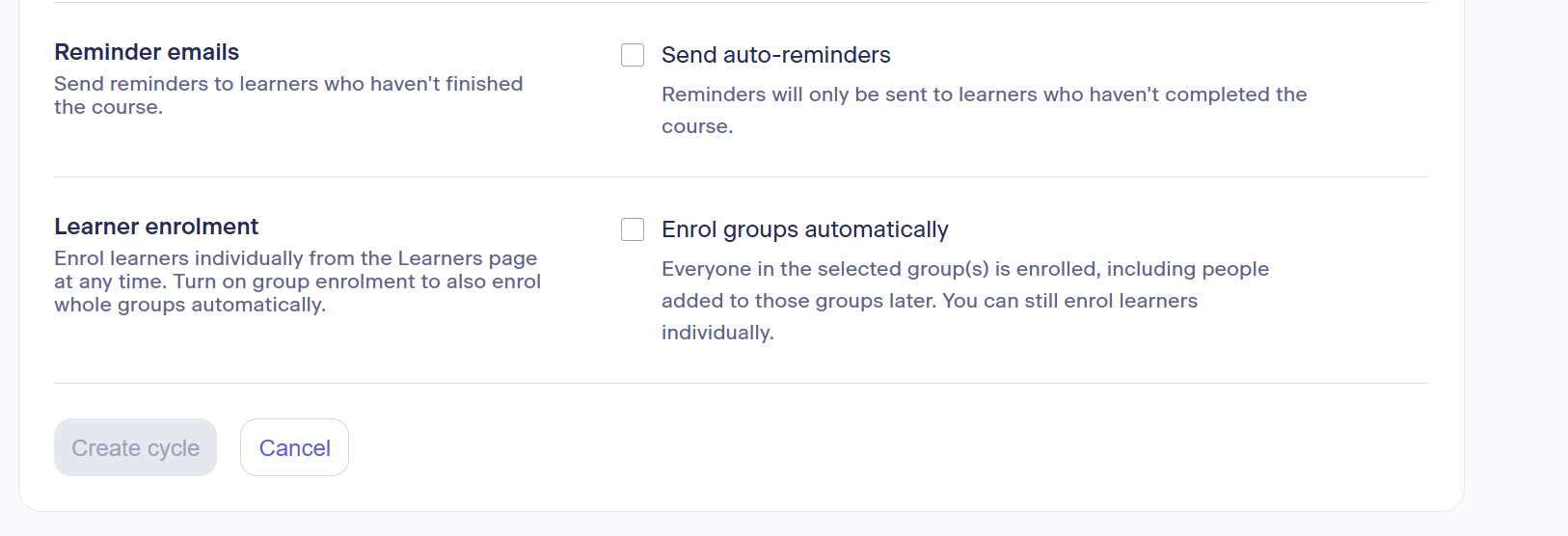
With group enrolment, you can enrol all people from a department, location, position or unit into a training cycle in a single step. You do not need to select learners individually. Which groups should be assigned to a training cycle is also determined in the settings of a training cycle. If you would like to use this option, check the box for Automatically enrol groups under Learner enrolment.
All details and a step-by-step guide to automated group enrolment can be found here in the dedicated article Group enrolment of learners.
Your new training cycle will now appear both in the All courses overview under the corresponding course and in the All training cycles overview.
Depending on the selected start date, you will find the new cycle under planned courses (start date in the future) or active courses (start date today).
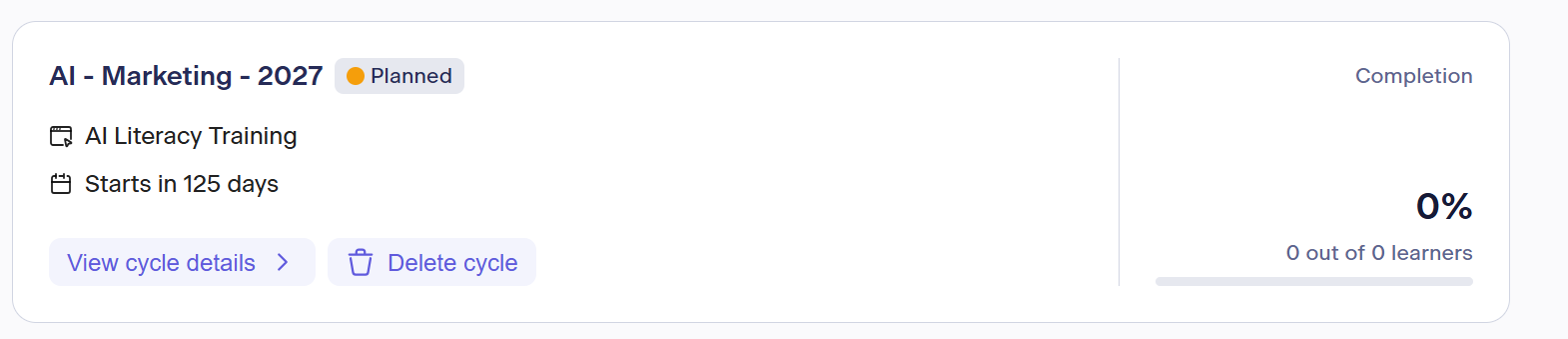
If you made a mistake during creation—no worries: you can edit training cycles at any time and, as long as they haven't started yet, delete them again!
Edit training cycles
All training cycles with the status Planned and Active can be edited. Completed and inactive cycles can no longer be adjusted.
Here, too, there are 2 ways to open the training cycle you want to edit: either select the cycle via the desired course in the All courses tab, or via the All training cycles tab.
Click the View cycle details button in the course tile, then switch to the Settings tab. You will then find the Edit button on the right side.
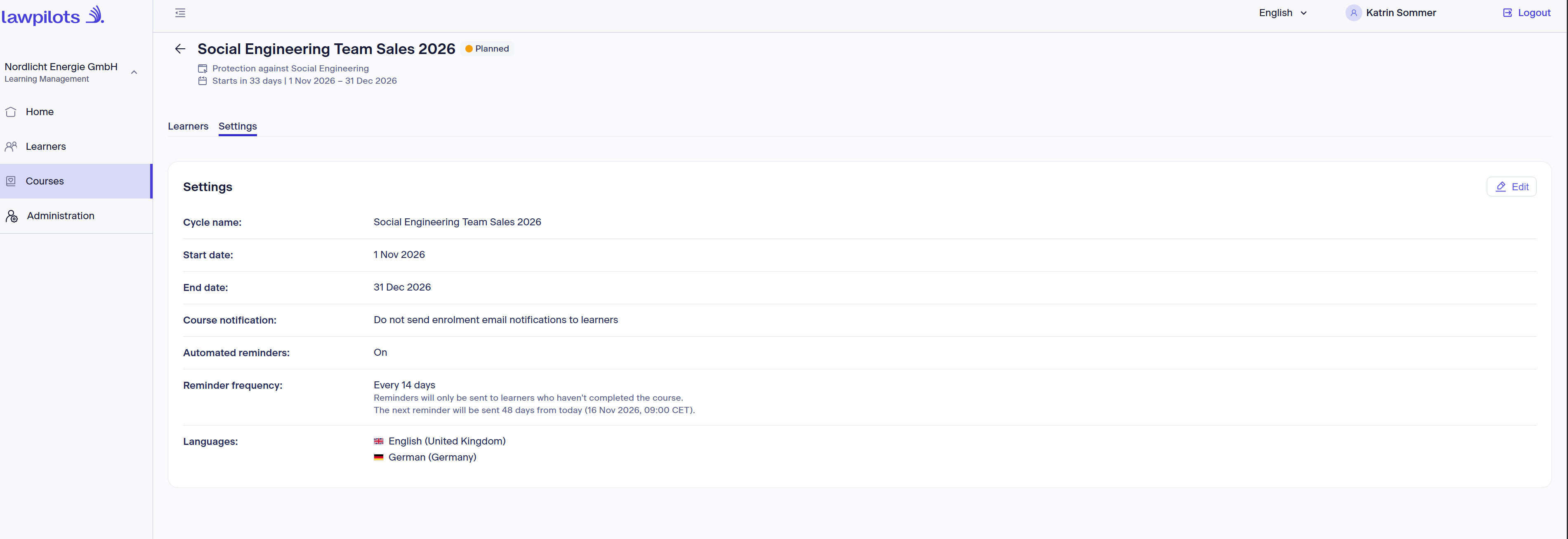
You will return to the same view and the same setting options as when creating a training cycle.
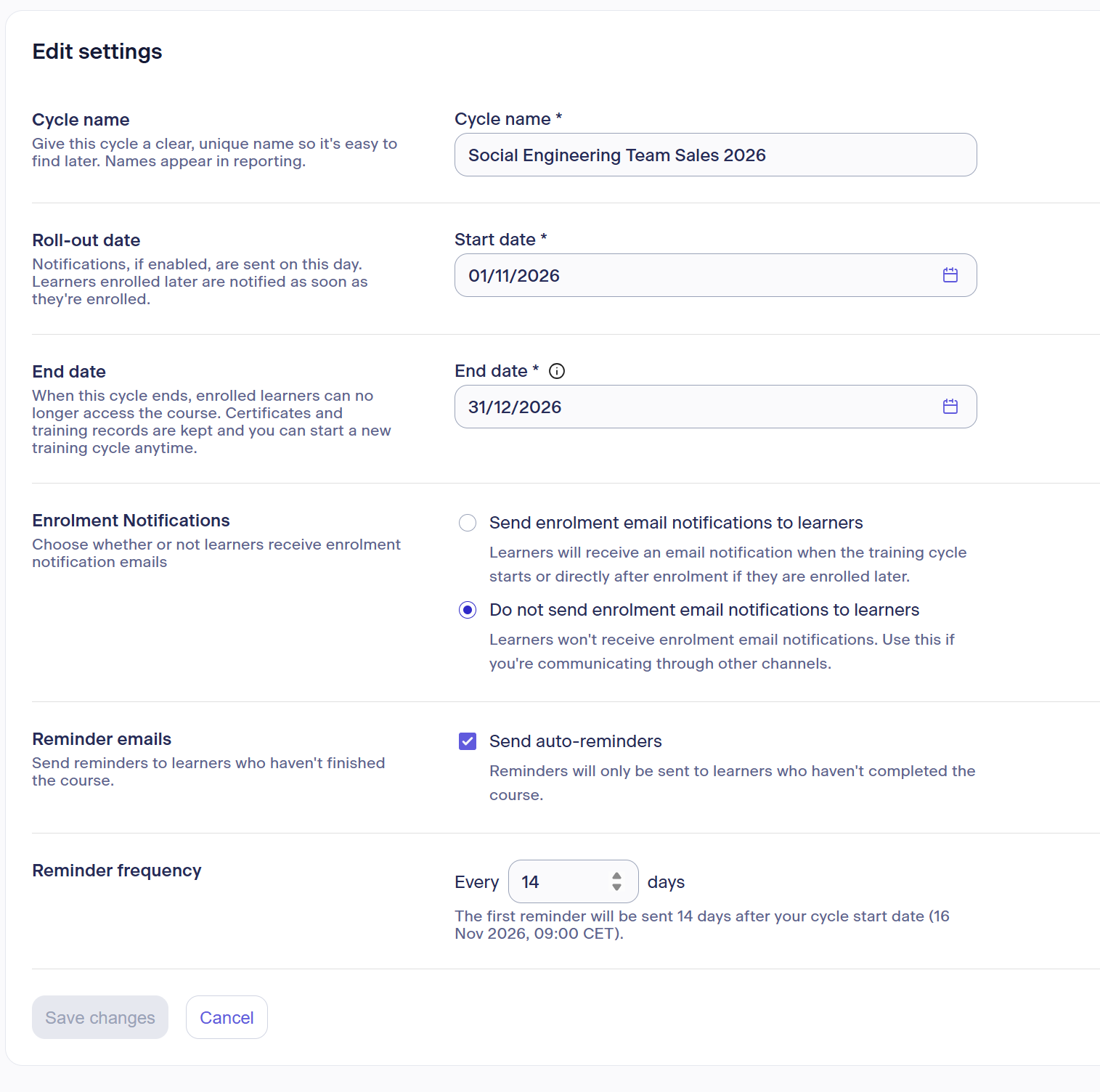
You can now revise all settings according to your wishes once more.
Important: For training cycles that have already begun—meaning they are active—the start date can no longer be changed because it has already passed.
Also note for active training cycles: Reactivating enrollment notifications does not trigger an automatic sending of this notification to all assigned learners! Anyone assigned while notifications were turned off will not receive a retroactive invitation. This ensures no one receives a duplicate or delayed email unexpectedly. (Alternatively, you can inform your learners to complete the course at any time using manual reminders.)
As soon as you have made all changes, finish by clicking the Save changes button. The changes will take effect immediately.